# Inspector
Tidewave Web includes a default inspector integrated with our coding agent. The Inspector understands both server-side templates and client-side components.
## Usage
You can find the inspector on the top right of your browser window. Once enabled, you can hover page elements:
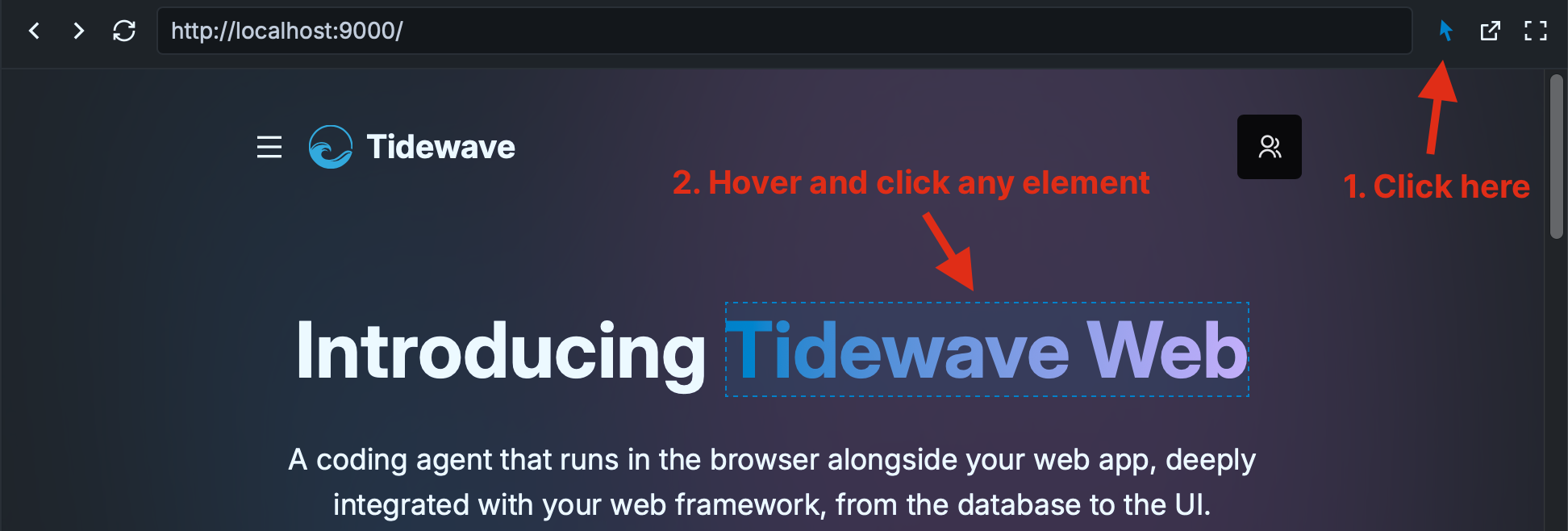
Once you click an element, it will be added as part of your prompt:
You can click multiple elements and ask multiple elements to be changed at once. Once you send the prompt, Tidewave will include precise information about that element, such as its location on the page, part of its contents, as well as the server-side templates and client components involved in rendering the particular element.
## Depth-based inspector
Sometimes you may want to select an element that is behind another element. To do so, simply right-click any position and Tidewave will open up a contextual menu with all DOM elements at the chosen point! Then you can either use the keyboard or the mouse to select the desired element:
In the screenshot above, after right-clicking the paragraph, a contextual menu appeared on the bottom right, which allows us to navigate all elements at that position.
## Framework overlay
By holding the `Ctrl` key (or `Cmd` key on macOS) while the Inspector is enabled. We will automatically show template/component metadata in a purple overlay. See the video below:
Clicking the element while the `Ctrl` key (or `Cmd` key on macOS) are pressed will open up the template/component in your [configured editor](editors.md).
## Shortcuts
The inspector supports the following shortcuts:
* `Ctrl+Shift+I` or `Cmd+Shift+I`: toggle inspector on and off
While the inspector is enabled, you can:
* `Right-click`: enables a menu with all elements at the given position
* `Ctrl+Click` or `Cmd+Click` (macOS): when hovering an element, you may Ctrl+Click it, and Tidewave will open up the element in your editor using your configured [editor integration](editors.md)
* `Escape`: disables the Inspector
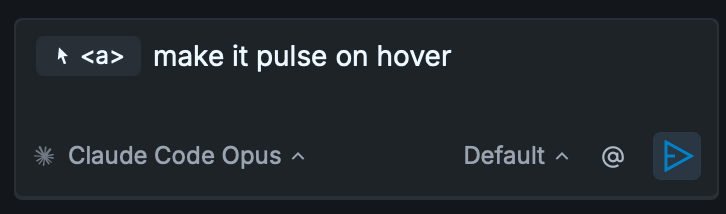 You can click multiple elements and ask multiple elements to be changed at once. Once you send the prompt, Tidewave will include precise information about that element, such as its location on the page, part of its contents, as well as the server-side templates and client components involved in rendering the particular element.
## Depth-based inspector
Sometimes you may want to select an element that is behind another element. To do so, simply right-click any position and Tidewave will open up a contextual menu with all DOM elements at the chosen point! Then you can either use the keyboard or the mouse to select the desired element:
You can click multiple elements and ask multiple elements to be changed at once. Once you send the prompt, Tidewave will include precise information about that element, such as its location on the page, part of its contents, as well as the server-side templates and client components involved in rendering the particular element.
## Depth-based inspector
Sometimes you may want to select an element that is behind another element. To do so, simply right-click any position and Tidewave will open up a contextual menu with all DOM elements at the chosen point! Then you can either use the keyboard or the mouse to select the desired element:
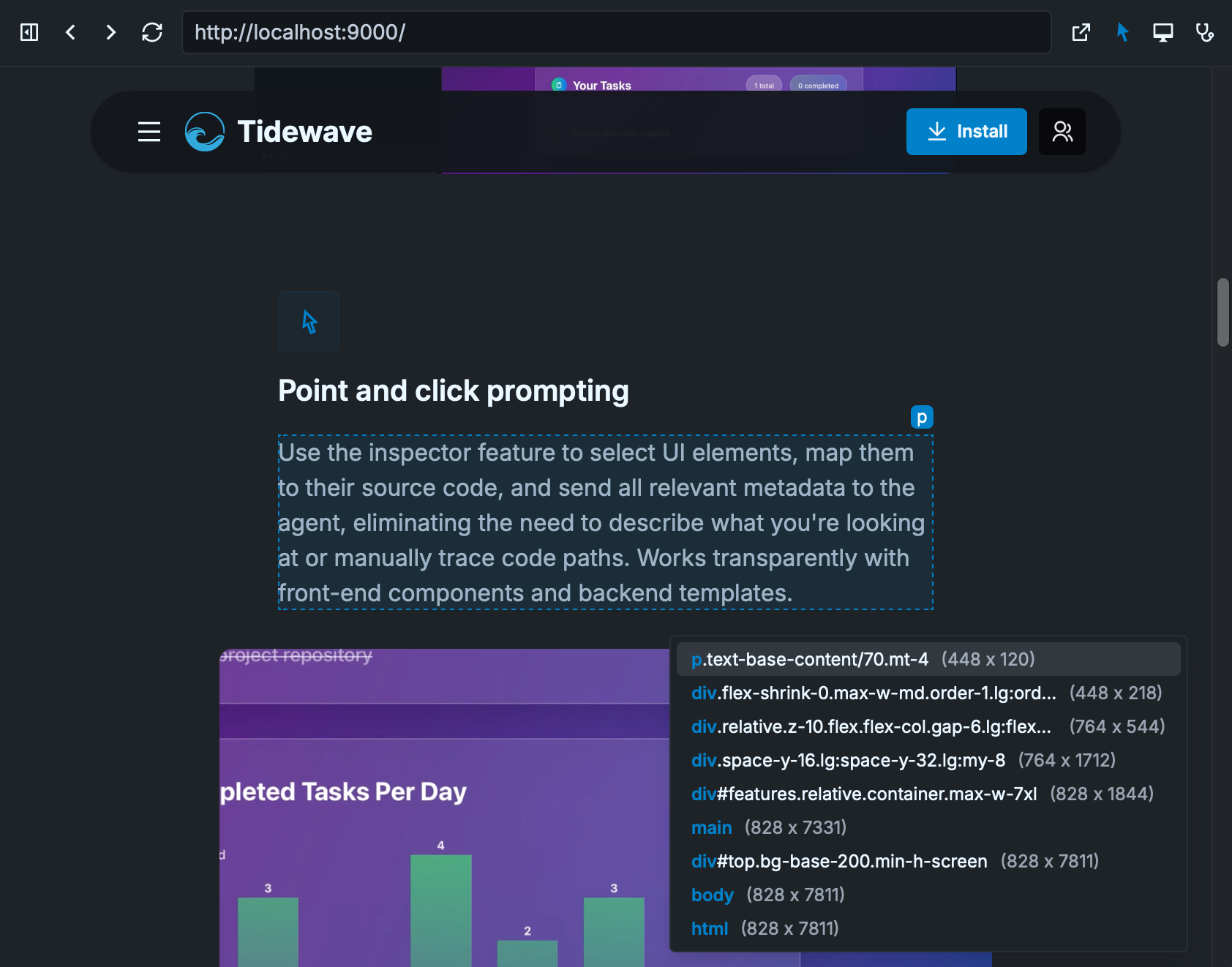 In the screenshot above, after right-clicking the paragraph, a contextual menu appeared on the bottom right, which allows us to navigate all elements at that position.
## Framework overlay
By holding the `Ctrl` key (or `Cmd` key on macOS) while the Inspector is enabled. We will automatically show template/component metadata in a purple overlay. See the video below:
Clicking the element while the `Ctrl` key (or `Cmd` key on macOS) are pressed will open up the template/component in your [configured editor](editors.md).
## Shortcuts
The inspector supports the following shortcuts:
* `Ctrl+Shift+I` or `Cmd+Shift+I`: toggle inspector on and off
While the inspector is enabled, you can:
* `Right-click`: enables a menu with all elements at the given position
* `Ctrl+Click` or `Cmd+Click` (macOS): when hovering an element, you may Ctrl+Click it, and Tidewave will open up the element in your editor using your configured [editor integration](editors.md)
* `Escape`: disables the Inspector
In the screenshot above, after right-clicking the paragraph, a contextual menu appeared on the bottom right, which allows us to navigate all elements at that position.
## Framework overlay
By holding the `Ctrl` key (or `Cmd` key on macOS) while the Inspector is enabled. We will automatically show template/component metadata in a purple overlay. See the video below:
Clicking the element while the `Ctrl` key (or `Cmd` key on macOS) are pressed will open up the template/component in your [configured editor](editors.md).
## Shortcuts
The inspector supports the following shortcuts:
* `Ctrl+Shift+I` or `Cmd+Shift+I`: toggle inspector on and off
While the inspector is enabled, you can:
* `Right-click`: enables a menu with all elements at the given position
* `Ctrl+Click` or `Cmd+Click` (macOS): when hovering an element, you may Ctrl+Click it, and Tidewave will open up the element in your editor using your configured [editor integration](editors.md)
* `Escape`: disables the Inspector