This guide sets up Tidewave IDE on a remote server, so someone can use it from their browser without installing anything new. It is useful when you want to give someone, such as a product manager or designer, a ready-to-use environment to work on your application with the help of Tidewave.
At the end of this guide, the server runs:
- your Phoenix application in development mode
- the Tidewave IDE CLI
- Caddy as a reverse proxy, which serves both over HTTPS and protects them with a password
Users open https://tidewave.example.com in their browser and connect it to your app.
We only show a specific setup for reference. If you're using a different framework or server environment, we recommend asking your agent to adapt this setup accordingly. Instead of a public reverse proxy with password protection, you can also make Tidewave and your app available only inside a VPN. See Using Tailscale instead of Caddy. The important part is that access to both Tidewave and your app is restricted, either by authentication or a VPN.
We tested this guide in October 2026 on Ubuntu 26.04 with a newly generated Phoenix 1.8 app, Elixir 1.20, Tidewave CLI 1.1, Caddy 2.11, and Tailscale 1.104 with tailscale serve.
Security considerations
Tidewave IDE gives coding agents shell access to the server. Anyone who can sign in to Tidewave IDE can run arbitrary commands as the user that runs Tidewave. Follow these rules:
- Use a dedicated server for this setup. Do not store production data or production credentials on it.
- Run Tidewave and your app as an unprivileged user without
sudoaccess. - Give each server to a single person. Everyone who signs in to Tidewave IDE shares the same Unix user, files, and credentials, including the GitHub CLI session, so they can act on behalf of each other. If several people need access, give each of them their own server.
- Protect both URLs with a password or use a VPN.
See our security guide for more information.
HTTPS advised
We strongly advise using HTTPS addresses for remote access. We currently do not guarantee remote Tidewave IDE instances work without HTTPS. See HTTPS guide for more information.
Overview
The browser talks to Tidewave IDE and to your web application directly. Therefore both must be reachable from the browser. Caddy terminates HTTPS and forwards requests to services that only listen on 127.0.0.1. You can expose the app in one of two ways:
| Layout | Tidewave IDE URL | App URL |
|---|---|---|
| Separate subdomains | https://tidewave.example.com | https://app.example.com |
| Separate port | https://tidewave.example.com | https://tidewave.example.com:4443 |
In both layouts, Caddy forwards Tidewave IDE requests to the Tidewave CLI at 127.0.0.1:9832 and app requests to the Phoenix dev server at 127.0.0.1:4000.
Separate subdomains use the standard HTTPS port for both URLs. They need two DNS records. A separate port needs only one DNS record, but some corporate and public networks block outgoing connections to ports other than 80 and 443. We recommend separate subdomains if users connect from such networks. Where the steps differ, this guide shows both layouts in tabs.
Both layouts keep Tidewave IDE and the app on the same site, so your app's session cookies keep working when Tidewave IDE embeds the app. Browsers treat subdomains of the same domain, and different ports of the same host, as the same site.
Because Caddy runs on the same machine, Tidewave and Phoenix receive all requests from 127.0.0.1. You do not need to enable --allow-remote-access in the Tidewave CLI or allow_remote_access in the Tidewave plug. The same applies when you use tailscale serve instead of Caddy.
This guide uses systemd to run the services. You could use Docker instead, but then you must match hosts and ports inside and outside the container, as described in our containers guide.
Prerequisites
You need:
- A server running a recent Ubuntu or Debian release, with root SSH access
- DNS
A(and optionallyAAAA) records pointing to the server:tidewave.example.comfor both layouts, andapp.example.comif you use separate subdomains - A GitHub account with access to your repository. It can be the account of the person who will use the server.
- A Phoenix application with Tidewave installed
- A Tidewave account for the person who will use the server. Tidewave IDE asks them to sign in when they open it.
Run the commands in the following sections as root, unless a section says otherwise.
1. Install system packages
Install the tools needed to build and run a Phoenix application:
apt update
apt install -y build-essential git curl unzip inotify-tools ca-certificates gnupg
If your application uses PostgreSQL, install it and set the password that the default Phoenix development configuration expects:
apt install -y postgresql
sudo -u postgres psql -c "ALTER USER postgres PASSWORD 'postgres';"
PostgreSQL only listens on localhost by default, so this password is not exposed to the network.
2. Configure the firewall
Allow only SSH, HTTP, and HTTPS. Caddy needs port 80 to obtain certificates from Let's Encrypt. Make sure the OpenSSH rule is in place before you run ufw enable, otherwise you lose access to the server.
apt install -y ufw
ufw allow OpenSSH
ufw allow 80/tcp
ufw allow 443/tcp
ufw enable
If you use a separate port for the app, also allow that port:
ufw allow 4443/tcp
3. Create the Tidewave user
Create an unprivileged user that runs Tidewave, your app, and the coding agents:
adduser --disabled-password --gecos "" tidewave
Do not add this user to the sudo group.
4. Set up GitHub access
Tidewave and its agents use git and the GitHub CLI to clone, push, and open pull requests. Install the GitHub CLI from its official package repository:
mkdir -p -m 755 /etc/apt/keyrings
curl -fsSL https://cli.github.com/packages/githubcli-archive-keyring.gpg \
  -o /etc/apt/keyrings/githubcli-archive-keyring.gpg
chmod go+r /etc/apt/keyrings/githubcli-archive-keyring.gpg
echo "deb [arch=$(dpkg --print-architecture) signed-by=/etc/apt/keyrings/githubcli-archive-keyring.gpg] https://cli.github.com/packages stable main" \
  > /etc/apt/sources.list.d/github-cli.list
apt update
apt install -y gh
Then switch to the tidewave user for the rest of this section:
su - tidewave
Git identity
Git needs a name and email for every commit. Without them, commits fail with Author identity unknown. Use the name and email of the GitHub account you sign in with below:
git config --global user.name "<name that should be used for commits>"
git config --global user.email "<email that should be used for commits>"
SSH key and GitHub CLI
Create an SSH key without a passphrase, so agents can use it without a prompt:
ssh-keygen -t ed25519 -C "tidewave@$(hostname)" -N "" -f ~/.ssh/id_ed25519
Sign in to the GitHub CLI. When gh asks whether to upload your SSH public key, choose ~/.ssh/id_ed25519.pub:
gh auth login --hostname github.com --git-protocol ssh --web
gh prints a one-time code and a URL. Open the URL on your own computer, sign in to the GitHub account, and enter the code. Check the result with gh auth status.
To upload the key, gh requests the admin:public_key scope, which allows managing the SSH keys of the account. Coding agents on the server can use the gh token, so remove the scope again:
gh auth refresh --hostname github.com --remove-scopes admin:public_key
Finally, check that SSH access works. The command accepts the GitHub host key on first use and prints a greeting with the account name:
ssh -o StrictHostKeyChecking=accept-new -T git@github.com
5. Install Elixir and clone your app
Continue as the tidewave user. Install Erlang and Elixir with the official install script. It downloads precompiled builds. Replace latest with specific versions if your project requires them, for example elixir@1.19.5 otp@28.3:
curl -fsSO https://elixir-lang.org/install.sh
sh install.sh elixir@latest otp@latest
rm install.sh
The script prints two export PATH=... lines for the installed versions. Add them at the top of ~/.bashrc. Ubuntu and Debian's default ~/.bashrc stops early for non-interactive shells, so lines at the bottom are not always loaded. For example:
export PATH="$HOME/.elixir-install/installs/otp/29.1.2/bin:$PATH"
export PATH="$HOME/.elixir-install/installs/elixir/1.20.4-otp-29/bin:$PATH"
Reload your shell with exec bash -l, then install Hex and Rebar:
mix local.hex --force
mix local.rebar --force
Clone your application and set it up:
git clone git@github.com:your-org/my_app.git ~/my_app
cd ~/my_app
mix setup
6. Configure Phoenix
Phoenix must know its public URL. The Tidewave plug only accepts requests to the host in the endpoint URL, and Phoenix uses the URL to generate links. Open config/dev.exs and add a url option to your endpoint configuration. Keep the existing http option, which binds the server to 127.0.0.1:
config :my_app, MyAppWeb.Endpoint,
  http: [ip: {127, 0, 0, 1}],
  url: [
    host: System.get_env("PHX_HOST", "localhost"),
    scheme: System.get_env("PHX_SCHEME", "http"),
    port: String.to_integer(System.get_env("PHX_PORT", "4000"))
  ],
  # ...
The environment variables keep the default localhost setup for other developers. The systemd service in the next section sets them on the server.
7. Run Phoenix as a service
The remaining sections run as root again. Exit the tidewave user's shell first.
Create /etc/systemd/system/my_app.service. The example uses separate subdomains:
[Unit]
Description=my_app Phoenix dev server
After=network.target postgresql.service

[Service]
User=tidewave
WorkingDirectory=/home/tidewave/my_app
Environment=MIX_ENV=dev
Environment=PHX_HOST=app.example.com
Environment=PHX_SCHEME=https
Environment=PHX_PORT=443
ExecStart=/bin/bash -lic 'exec mix phx.server'
StandardOutput=append:/home/tidewave/my_app/tmp/app.log
StandardError=inherit
Restart=always
RestartSec=1

[Install]
WantedBy=multi-user.target
If you use a separate port, set the public host and port of the app instead:
Environment=PHX_HOST=tidewave.example.com
Environment=PHX_PORT=4443
The Tidewave plug and the LiveView origin check compare only the host, so no other changes are needed.
bash -lic loads ~/.bashrc, so the service finds Elixir. Because the shell runs without a terminal, the log starts with two harmless warnings: cannot set terminal process group and no job control in this shell. Restart=always starts the server again after it exits. This lets agents restart the app, for example after changing dependencies or configuration, by calling System.stop() with the Tidewave project_eval tool. The log file in tmp/app.log lets agents read the server output.
Create the log file as the tidewave user, so agents can also truncate it. Otherwise systemd creates it as root. Then start the service:
sudo -u tidewave mkdir -p /home/tidewave/my_app/tmp
sudo -u tidewave touch /home/tidewave/my_app/tmp/app.log
systemctl daemon-reload
systemctl enable --now my_app
Check that the app responds:
curl -I http://127.0.0.1:4000
8. Run Tidewave as a service
Download the Tidewave CLI. Use the aarch64 build on ARM servers:
curl -fsSL -o /usr/local/bin/tidewave \
  https://github.com/tidewave-ai/tidewave_app/releases/latest/download/tidewave-cli-x86_64-unknown-linux-gnu
chmod +x /usr/local/bin/tidewave
Create /etc/systemd/system/tidewave.service:
[Unit]
Description=Tidewave IDE
After=network.target

[Service]
User=tidewave
WorkingDirectory=/home/tidewave/my_app
ExecStart=/usr/local/bin/tidewave --port 9832 --allowed-origins https://tidewave.example.com
Restart=on-failure

[Install]
WantedBy=multi-user.target
--allowed-origins must match the address users type in the browser exactly, without a path or trailing slash. The CLI still listens on 127.0.0.1 only, because the service does not pass --allow-remote-access.
Tidewave starts agents and terminals with the environment of an interactive login shell for the tidewave user. Therefore they find Elixir, git, and gh through ~/.bashrc.
Start the service:
systemctl daemon-reload
systemctl enable --now tidewave
To update Tidewave later, download the binary again and run systemctl restart tidewave.
9. Configure Caddy
Install Caddy from its official package repository:
apt install -y debian-keyring debian-archive-keyring apt-transport-https
curl -1sLf 'https://dl.cloudsmith.io/public/caddy/stable/gpg.key' \
  | gpg --dearmor -o /usr/share/keyrings/caddy-stable-archive-keyring.gpg
curl -1sLf 'https://dl.cloudsmith.io/public/caddy/stable/debian.deb.txt' \
  > /etc/apt/sources.list.d/caddy-stable.list
chmod o+r /usr/share/keyrings/caddy-stable-archive-keyring.gpg
chmod o+r /etc/apt/sources.list.d/caddy-stable.list
apt update
apt install -y caddy
Generate a password hash for the user who will sign in:
caddy hash-password
Replace /etc/caddy/Caddyfile with the configuration for your layout. Use your domain, a user name, and the hash from the previous command:
Separate subdomains
(auth) {
	basic_auth {
		manager $2a$14$REPLACE_WITH_YOUR_HASH
	}
}

tidewave.example.com {
	import auth
	reverse_proxy 127.0.0.1:9832
}

app.example.com {
	import auth
	reverse_proxy 127.0.0.1:4000
}
Separate port
(auth) {
	basic_auth {
		manager $2a$14$REPLACE_WITH_YOUR_HASH
	}
}

tidewave.example.com {
	import auth
	reverse_proxy 127.0.0.1:9832
}

tidewave.example.com:4443 {
	import auth
	reverse_proxy 127.0.0.1:4000
}
Both sites must use the same credentials. Tidewave IDE sends some requests to the app through the Tidewave CLI, which forwards the credentials the browser sent to Tidewave IDE. Caddy obtains HTTPS certificates automatically and forwards WebSocket connections without extra configuration. With a separate port, both sites share one certificate, and Caddy still uses port 80 to obtain it.
Apply the configuration:
systemctl reload caddy
10. Open Tidewave IDE
Share the two URLs and the credentials with the user. They then:
- Open the app URL, such as
https://app.example.comorhttps://tidewave.example.com:4443, and sign in. Browsers store credentials per host and port, so this step stores them for the app. - Open
https://tidewave.example.comand sign in. - Sign in with their Tidewave account when Tidewave IDE asks for it.
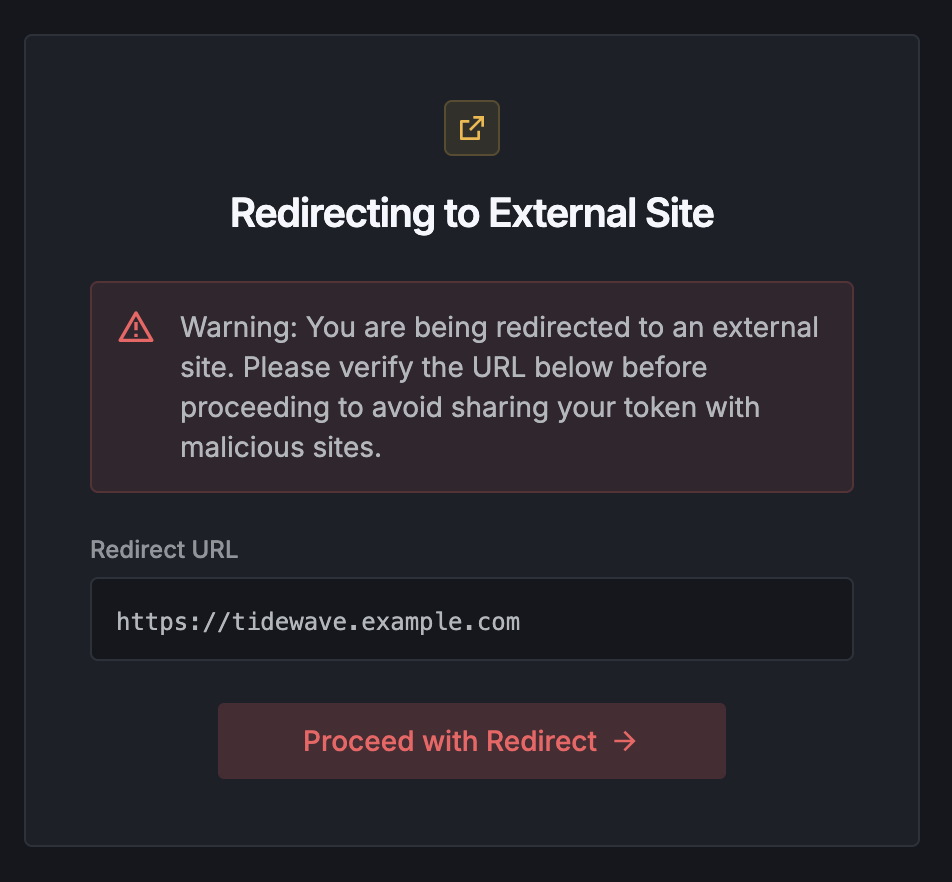
- Click Proceed with Redirect when tidewave.ai asks to confirm the redirect.
- Enter the app URL as the application address.
- Click Allow when the app asks whether to allow the connection from Tidewave IDE.
After the sign-in, tidewave.ai sends the user back to Tidewave IDE together with a sign-in token. Because Tidewave IDE does not run on localhost, tidewave.ai asks the user to confirm the redirect. Only proceed if the redirect URL is your Tidewave IDE URL.
Next, the app asks whether to allow the connection from Tidewave IDE:
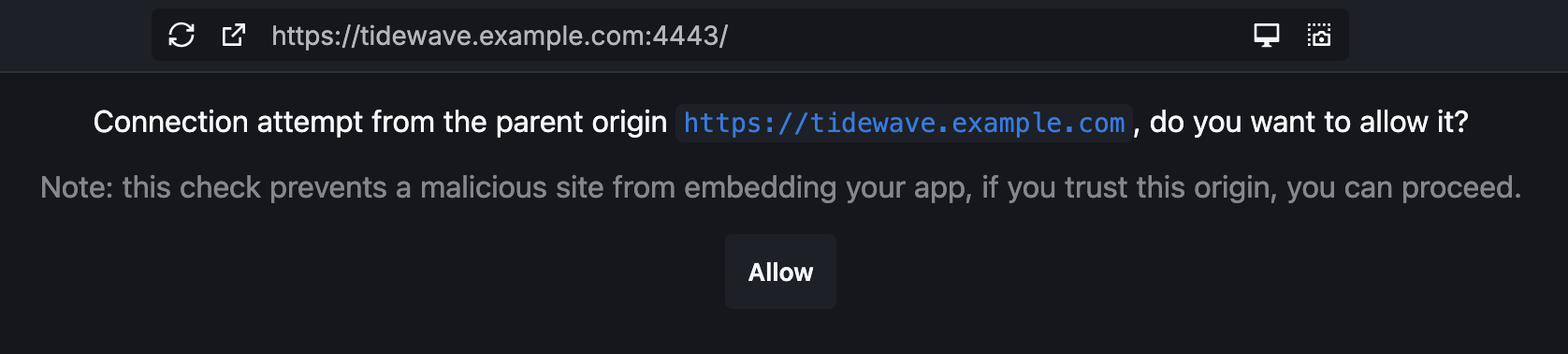
The app shows this prompt because Tidewave IDE runs on a different origin than the app. The check prevents other websites from embedding your app and connecting to it. Only click Allow if the origin in the prompt is your Tidewave IDE URL.
Next, set up a coding agent. Go to Settings > Providers in Tidewave IDE, select a provider, and follow its installation and sign-in steps. See our providers guide for details.
Using Tailscale instead of Caddy
If all users are members of your Tailscale network (tailnet), you can use tailscale serve instead of Caddy. It serves Tidewave IDE and your app over HTTPS inside your tailnet only, and Tailscale access controls replace the password protection. Tidewave and Phoenix keep listening on 127.0.0.1, as in the Caddy setup.
Each machine has a single name in your tailnet, such as my-server.my-tailnet.ts.net. Therefore you must use the separate port layout. Follow steps 1 to 8 with these changes:
- Skip the DNS records. In the firewall step, do not open ports 80, 443, and 4443. Tailscale does not need any open ports.
- In the Phoenix service, set
PHX_HOST=my-server.my-tailnet.ts.netandPHX_PORT=8443. - In the Tidewave service, pass
--allowed-origins https://my-server.my-tailnet.ts.net.
Then skip step 9 and set up Tailscale instead. Enable MagicDNS and HTTPS certificates for your tailnet in the Tailscale admin console. Install Tailscale on the server and connect it to your tailnet:
curl -fsSL https://tailscale.com/install.sh | sh
tailscale up
Serve Tidewave IDE on the default HTTPS port and the app on port 8443:
tailscale serve --bg --https=443 http://127.0.0.1:9832
tailscale serve --bg --https=8443 http://127.0.0.1:4000
Check the result with tailscale serve status. The configuration persists across reboots. Users then open https://my-server.my-tailnet.ts.net and connect it to https://my-server.my-tailnet.ts.net:8443.
Troubleshooting
Check the service status and logs:
systemctl status my_app tidewave caddy
journalctl -u tidewave -f
journalctl -u caddy -f
tail -f /home/tidewave/my_app/tmp/app.log
Common problems:
- Tidewave shows a warning in the preview or when authenticating. Tidewave only allows localhost redirects by default and also checks the origins of the preview page. You can proceed after confirming that the address shown is correct.
- The app loads, but Tidewave reports that the host is not allowed. Phoenix does not use the public app host as its URL host. Check that the
PHX_HOSTvariable reaches the service and thatconfig/dev.exsreads it. - LiveView pages reload in a loop. If your development configuration enables
check_origin, the LiveView socket rejects the origin for the same reason. Check the endpointurlconfiguration. New Phoenix apps setcheck_origin: falsein development. - Caddy cannot obtain certificates. Check that the DNS records point to the server and that ports 80 and 443 are open.
- The app URL times out with a separate port. Check that the firewall allows port 4443. If it works from other networks, the user's network blocks the port. Switch to separate subdomains.
- Commits fail with
Author identity unknown. Thetidewaveuser has no Git identity. Set it as described in Git identity. - Agents cannot find
mixorgh. Check that thePATHlines are at the top of/home/tidewave/.bashrc, then restart thetidewaveservice.