}
overlay: Then tell your agent what to record
now close settings, focus on {Selected element
}
(use 2x zoom in), and type "make an awesome video!", zoom out
```
The `{Selected element
}` snippets are page elements selected with
our [Inspector](inspector.md) feature.
> #### ElevenLabs API key {: .info}
>
> Your API key is only kept on the client and never sent to our servers.
### Tips
* **Animations and sound effects** — Agentic recordings include animations and sound effects on click and on typing. For those to happen, make sure the agent is using `browser.click` and `browser.fill` in the scripts (we already instruct the agent to do so, but you may need to reinforce it in long sessions).
* **Close ups and overlays** — You can ask the agent to zoom-in and zoom-out before performing certain actions (which uses `browser.zoom`). You can also ask the agent to add overlays (via `browser.overlay`), which are also narrated when "Voice narration" is enabled.
* **Viewport pairing** — You can combine video recording with the [Viewport](viewport.md) feature to control the dimensions of the recorded video. If using agentic recording, the agent is also capable of resizing the viewport. For example, you can ask the agent to record two videos, one for desktop, one for mobile. The agent can also resize while recording, which is supported by the .webm format, but not all players handle it accordingly.
* **Rehearsals** — Vision mode will first rehearse the video recording, before it actually starts, so they iron out all of the details. For highly dynamic pages and recordings, where the elements you will interact with change, the agent is instructed to use query selectors, such as IDs and labels. The agent is also instructed to clean up any changes done during rehearsals before recording. As always, we carefully instruct the agent to do so, but you may need to reinforce it in long sessions.
* **It is just JavaScript** — Our agentic recording is just JavaScript. This means that, if you want anything to happen during recording, such as highlighting an element, showing confetti, etc., you can ask the agent to do so and it should write appropriate code snippets.
 Once enabled, it will ask permission to record the current tab.
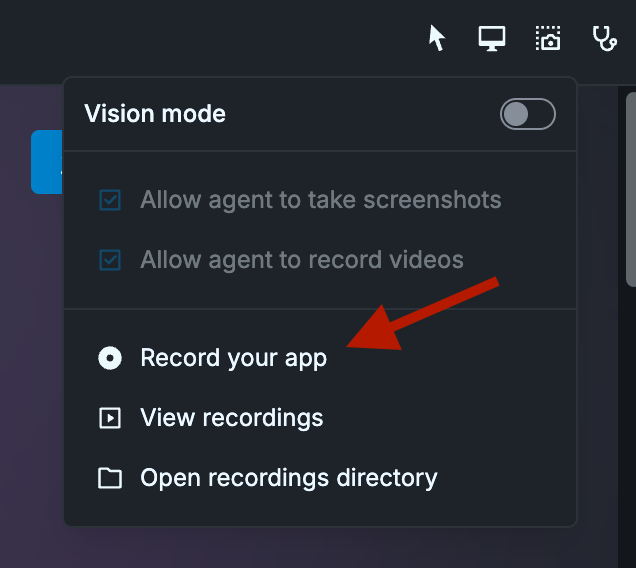
Video recordings are stored in disk. You can select "View recordings" to list all of them inside Tidewave or "Open recordings directory" to open it within your operating system.
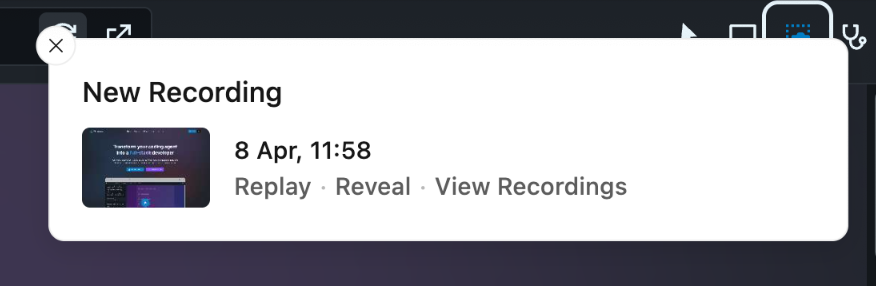
The Tidewave team itself makes extensive use of video recordings. Almost every pull request we submit includes a video recording, recorded by humans or agents, which smooths the review process. Whenever you record a video, a toast will appear on the top-right, allowing you to view the video, reveal its location in disk, or list all of them:
Once enabled, it will ask permission to record the current tab.
Video recordings are stored in disk. You can select "View recordings" to list all of them inside Tidewave or "Open recordings directory" to open it within your operating system.
The Tidewave team itself makes extensive use of video recordings. Almost every pull request we submit includes a video recording, recorded by humans or agents, which smooths the review process. Whenever you record a video, a toast will appear on the top-right, allowing you to view the video, reveal its location in disk, or list all of them:
 ## Agentic use
You can enable your agent to automatically take screenshots and record videos within your browser by toggling vision mode:
## Agentic use
You can enable your agent to automatically take screenshots and record videos within your browser by toggling vision mode:
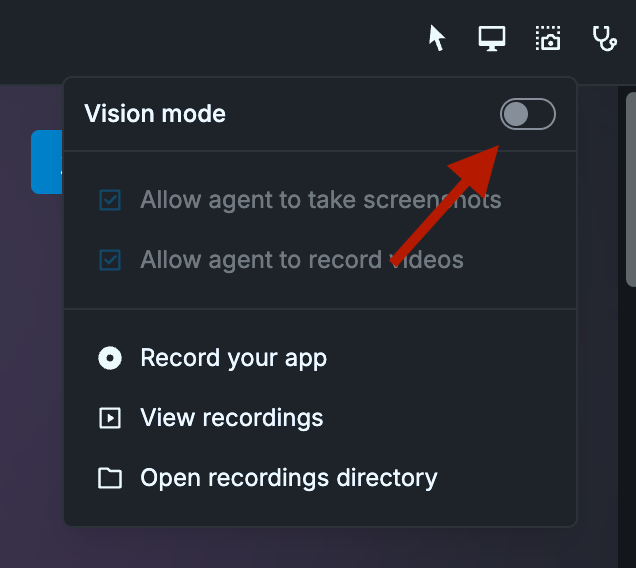 Once enabled, it will ask permission to record the current tab.
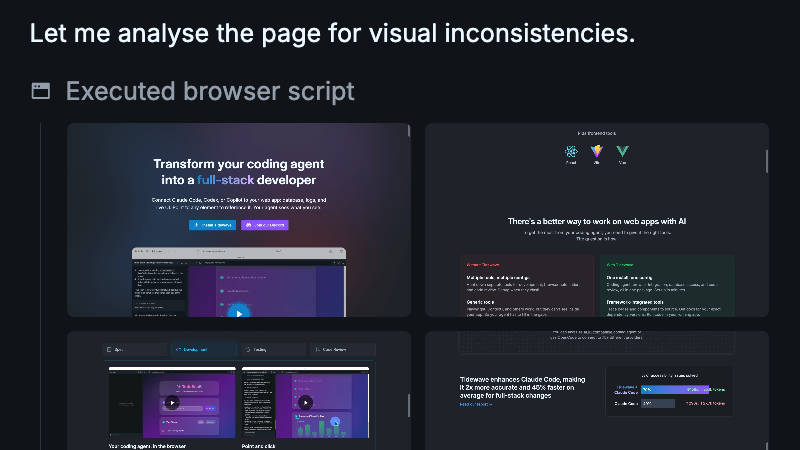
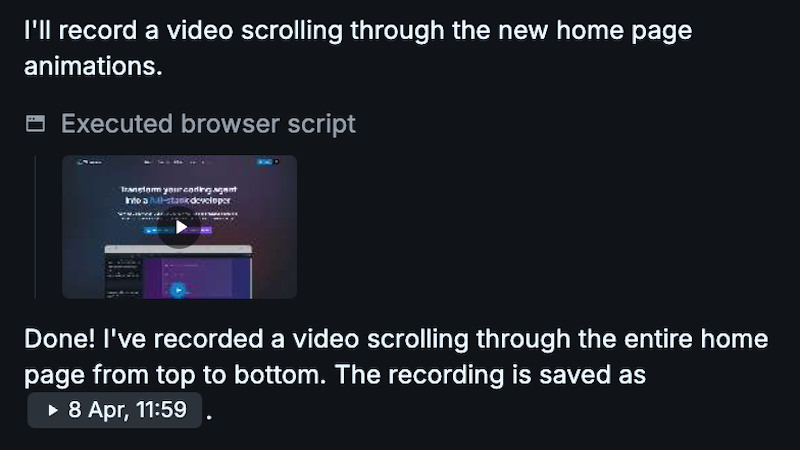
From now on, whenever the agent takes a screenshot or record a video, you will see thumbnails below the associated tool call:
Once enabled, it will ask permission to record the current tab.
From now on, whenever the agent takes a screenshot or record a video, you will see thumbnails below the associated tool call: