The Tidewave Toolbar and Tidewave IDE allow your coding agent to connect to your browser and control your web application:
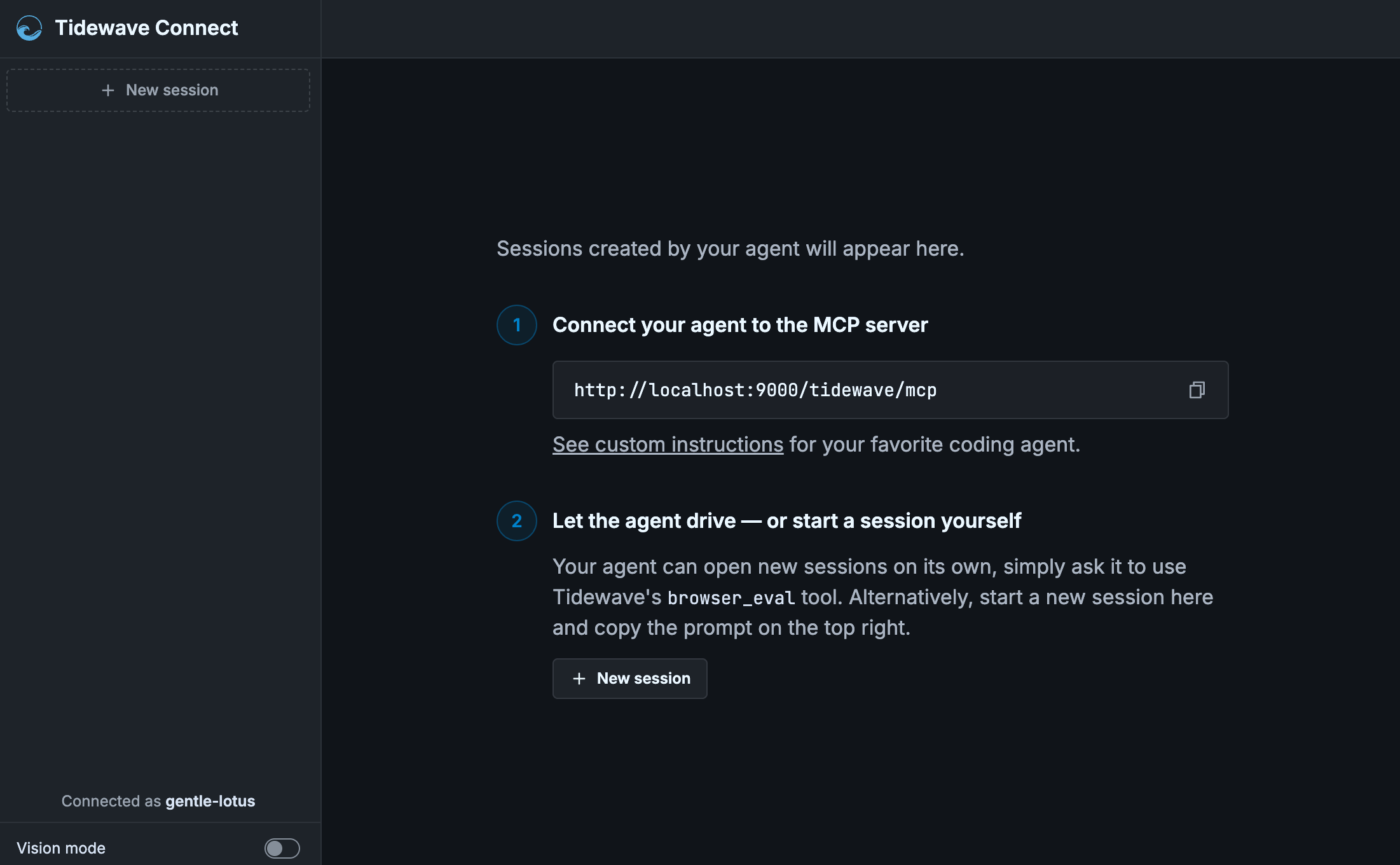
It is similar to tools like Playwright or the browser in your editor, with a few notable differences:
Uses your browser: Tidewave uses your existing browser and sessions, making it much easier for the agent to see and debug the same page you are working with
Integrated error handling and diagnostics: Because Tidewave understands your framework, it runs custom client diagnostics, helping your agent spot defects before they hit production, and automatically recognizes error pages, feeding stacktraces, logs, framework metadata to the agent
Vision mode: Tidewave's vision mode includes the ability to record videos with captions, narration, and other bells and whistles for proof of work
To use browser automation with the Tidewave Toolbar, you need to click the "Tidewave Connect" icon in the toolbar and set up Tidewave MCP. Browser automation is built-in to the Tidewave IDE and it works out of the box. No additional configuration needed.
Using with Tidewave IDE
Browser automation is built-in to the Tidewave IDE. Simply ask Tidewave to investigate or verify something on the current page and it will do so immediately.
Adversarial UI testing
When developing new features, you can ask your coding agent to perform adversarial testing by spawning multiple agents, each with their own session, looking for bugs, exploring corner cases, and usability issues. Here is a sample prompt:
Use Tidewave's
browser_evalto perform adversarial testing of the feature implemented. Come up with different ideas to break features (click twice rapidly, submit empty forms, use the back button, etc) and corner cases (empty states, form recovery, invalid inputs, etc) and spawn subagents to try them. Each subagent should start its ownbrowser_evalsession.
Using with Tidewave Toolbar (Connect)
To get started with browser automation in the toolbar, first click the Tidewave Connect icon:
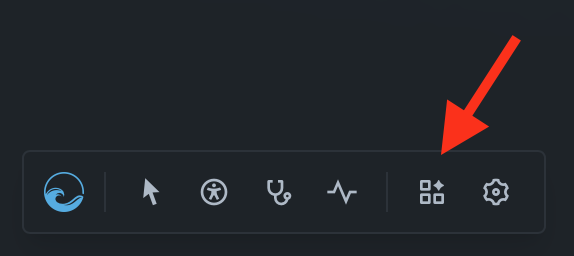
The new page will guide you to connect your coding agent to the browser via Tidewave MCP. If your app is running on localhost:4000, your coding agent should connect to localhost:4000/tidewave/mcp and you should open up your browser at localhost:4000/tidewave, and now your coding agent will be able to control your browser via the browser_eval tool.
This architecture also enables some interesting workflows you may want to try:
You can open up
localhost:4000/tidewavein three different browsers and your coding agent should be capable to connect to each of themTidewave Connect is per domain/origin, due to browser restrictions. Therefore, if your application runs on
localhost:4000andadmin.localhost:4000, you will have to open/tidewaveper hostSimilarly, if you want to establish remote connections, such as
myapp.staging.example.com, you simply need to connect your coding agent tomyapp.staging.example.com/tidewave/mcpand openmyapp.staging.example.com/tidewavein your browser, and you are good to go
Multiple sessions
Once connected to a particular browser, your coding agent gets its own session, but the agent can start as many sessions as it wants on demand. This means you can trivially run parallel workflows. For example, you can ask your coding agent to spawn a few subagents to navigate through the website, looking for bugs, security gaps, etc.
Parallel accessibility screening
You can ask your coding agent to scan the accessibility of your website in parallel, finding accessibility violations, and either fixing them or reporting them back. Here is a sample prompt:
Use Tidewave's
browser_evalto improve the accessibility of the website by invokingbrowser.accessibilityReport(). First, do an initial scan and address any bugs in the layout (which would be shared across pages). Then select several routes/pages to assess and spawn a subagent for each of them.
Viewport
You can customize the viewport in Tidewave and simulate different devices. To use it, click on the display icon on the top right:

Once enabled, you can either select one of the available presets or type custom dimensions.
The viewport is also available to coding agents. This means coding agents can automatically test and verify breakpoints. For example, you can ask how your app renders on mobile and the agent will match what the code says with how the app behaves in practice: